Scream Puppet
Let extra puppets read your chat's own messages aloud during a timed session.
This guide takes about ten minutes. At the end, a Scream Puppet reads chat messages on your overlay whenever you start a session.
What you can do
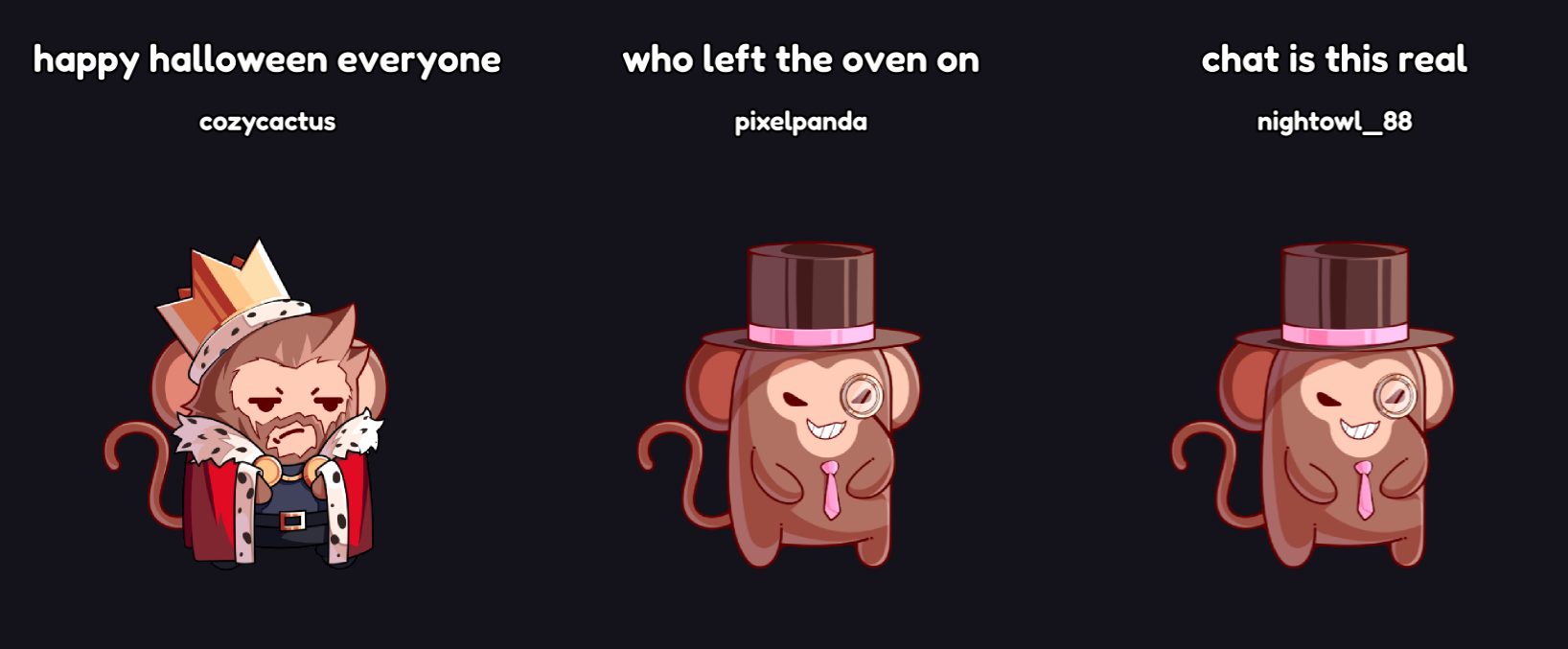
- Give your chat a voice for a few minutes. During a session, each Scream Puppet picks a recent chat message and reads it aloud on your overlay.
- Start a session yourself, let viewers start one with a Channel Points reward, or start one when a Twitch Hype Train starts.
- Run several Scream Puppets at once. Each one speaks a different message.
- Keep your main queue playing. Scream Puppets speak beside the main puppet, not instead of it.
Before you start
- VoicePuppet is set up and your overlay works in OBS. If not, start with getting started.
- For the Channel Points reward, create a custom reward on Twitch first, in your Twitch creator dashboard under Channel Points. Viewers will redeem it to start a session. You can skip this if you only start sessions yourself or with Hype Trains.
Set it up
1. Add a Scream Puppet
-
In VoicePuppet, open Puppets and click Add Puppet.
-
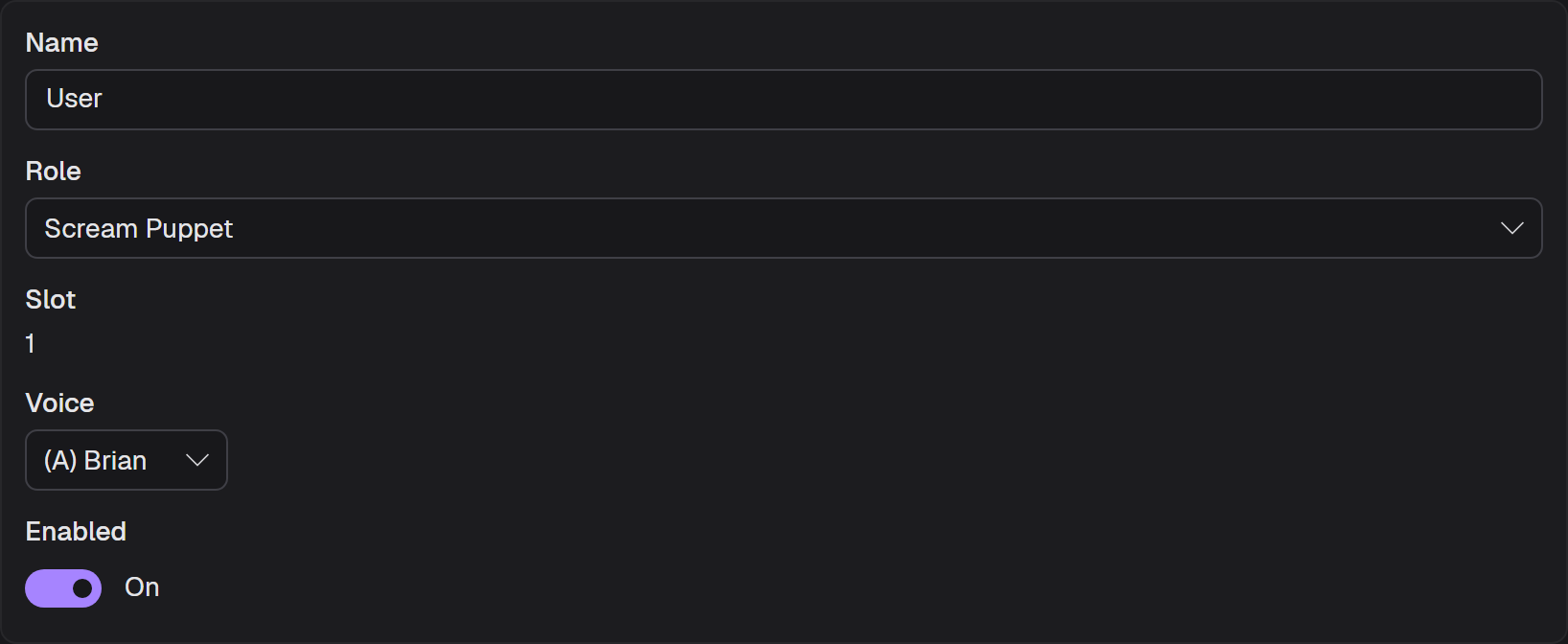
In Edit Puppet, set Role to Scream Puppet.
-
Give the puppet its look, the same way as any other puppet, and click Save.
-
Open Overlay and check that the new Scream Puppet has a place in your layout. A Scream Puppet without a place on the overlay never gets a message.
For more Scream Puppets, repeat these steps. Each one gets its own place on the overlay.
2. Choose how sessions start
-
Open Config in the sidebar and choose Scream Puppet.
-
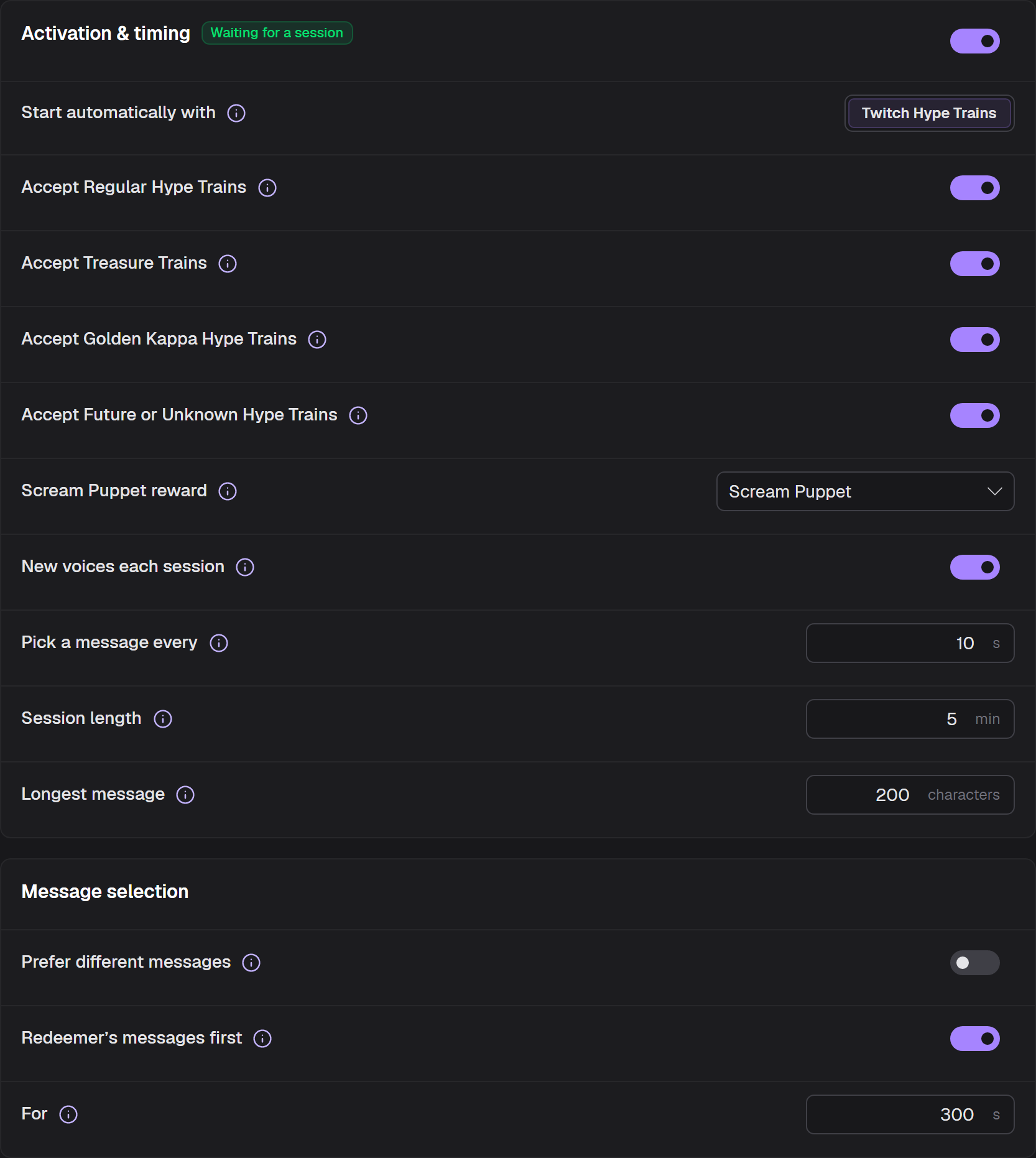
Turn on the switch beside Activation & timing. It lets Scream Puppets pick chat messages. Without it, a session starts but no Scream Puppet speaks.
-
If viewers can start sessions with Channel Points, choose your custom reward under Scream Puppet reward.
-
If Hype Trains should start sessions, set Start automatically with to Twitch Hype Trains. Then turn on the train types you want, such as Accept Treasure Trains.
-
Set Session length. A session from the reward or the dashboard lasts this long.
You should see: Waiting for a session on the card.
3. Tune which messages play
These settings are on the same card. The defaults work for most channels.
- Set Pick a message every. A shorter time gives chat more turns.
- Set Longest message. Longer messages are never picked.
- Turn on Prefer different messages if your chat often repeats the same joke.
- Turn on Redeemer’s messages first if viewers who redeem your reward should be heard first.
Check that it works
-
Open Dashboard.
-
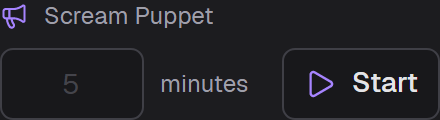
On the Scream Puppet strip, type
1in the minutes box and click Start. -
Ask a friend or a moderator to send a short chat message.
You should see: a Scream Puppet reads the message on your overlay within a few seconds.
-
Click Stop to end the test session.
How a session works
A session runs for a set time. While it runs, VoicePuppet looks at recent chat at each Pick a message every interval. Each Scream Puppet that is not already speaking gets one message, with the viewer’s name under it.
| Way to start | How long the session runs |
|---|---|
| Start on the dashboard | The minutes you type, or Session length when the box is empty. |
| A viewer redeems your reward | Session length. |
| A Twitch Hype Train starts | Until the train ends. |
Starting a session while one is running adds time to it. A session ends when its time runs out or when you click Stop. Messages that a Scream Puppet has not spoken yet are dropped when the session ends.
With Redeemer’s messages first on, a viewer who starts or extends a session with your reward has their chat messages picked first for the time you set under For. It gives them no moderation permissions.
Streamer.bot and Stream Deck cannot start or stop a session.
Which chat messages can play
VoicePuppet only picks messages that:
- were sent in your chat in about the last 30 seconds,
- are no longer than Longest message,
- carry no Bits,
- did not already go to the main puppet or to another puppet,
- come from a viewer who has chatted in your channel before, and has not claimed a puppet of their own.
Your moderation still applies. A message that a moderator deletes, or from a viewer who is timed out or banned, is not picked. Viewers on Blocked viewers are never picked, and your blocked words apply as they do to any TTS message.
With New voices each session on, each Scream Puppet gets a new voice when a session starts. Turn it off to keep the voice you chose in Edit Puppet.
Prefer different messages lets VoicePuppet skip messages that repeat what a Scream Puppet just said, even when the words are different. A classifier on the VoicePuppet website compares the messages. It needs VoicePuppet linked to your channel. Without the link, VoicePuppet only skips messages with the same text.
For viewers
Why did my chat message play? The broadcaster started a Scream Puppet session. During a session, Scream Puppets read recent chat messages aloud. Sending a message in chat is enough. There is nothing to redeem and nothing to pay.
Why did it play in a different voice? Each Scream Puppet has its own voice, and it can change every session. Voice tags do not work in Scream Puppet messages.
How do I keep my messages from playing? Ask the broadcaster or a moderator. They can add you to the channel’s blocked viewers.
On your VoicePuppet account page, a message that a Scream Puppet read appears in your message history as Scream Puppet.
Turn it off
- End a session: on the Dashboard, click Stop.
- Stop viewers from starting sessions: on the Scream Puppet card, clear Scream Puppet reward and turn off each Hype Train type.
- Stop picking chat messages: turn off the switch beside Activation & timing. Your Scream Puppets and their settings stay.
Troubleshooting
The card asks you to add a Scream Puppet. The card shows Add a Scream Puppet when no puppet has the Scream Puppet role. Follow Add a Scream Puppet.
The card says chat selection is off. The card shows Session running · chat selection is off or Chat selection is off when the switch beside Activation & timing is off. Turn it on.
A session is running, but no Scream Puppet speaks. Check that each Scream Puppet has a place in Overlay. Then check that chat is active: only messages from about the last 30 seconds can play.
Viewers redeem the reward, but nothing happens. Check that Scream Puppet reward names the reward your viewers redeem. Twitch’s built-in rewards, such as Highlight My Message, cannot start a session.
A Hype Train started, but no session did. Check that Start automatically with says Twitch Hype Trains, and that the train’s type is turned on.