Twitch TTS with VoicePuppet
Learn how VoicePuppet turns Twitch text-to-speech messages into puppet performances in OBS and how to join the private beta.
What VoicePuppet does
Text-to-speech, or TTS, reads a viewer’s message aloud. VoicePuppet gives that message a puppet on your Twitch stream. Viewers choose a voice and an effect, and the puppet performs their words in OBS.
A talking TTS avatar is sometimes called a TTS pet. In VoicePuppet, that character is your puppet. It performs the viewer’s message. It does not need to replace your own camera or avatar.
The Windows desktop app handles playback and the overlay. Your channel’s website page lets viewers hear voice samples and build a message. You and your moderators decide what reaches the stream.
What you need
- A Twitch channel and a Windows PC running OBS.
- An approved VoicePuppet channel during the private beta.
- The VoicePuppet desktop app, provided through approved onboarding.
Hosted Amazon Polly and Azure voices do not need your own provider account. You can also connect your own ElevenLabs or Fish Audio account. Your provider’s charges apply to voices from your own account.
Get started
- Open VoicePuppet for streamers.
- Sign in with Twitch and request an invite for your channel.
- After approval, follow your onboarding instructions to install and link the desktop app.
- Add your voices and their Bits prices in the desktop app.
- Open your channel page and check its voice samples and message builder.
Signing in alone does not create a channel. Approval creates your channel page and dashboard. Your desktop catalog supplies the voices and prices on that page, so you do not maintain a second catalog on the website.
Send a first message
- Open your channel page and use the voice search field to find a voice.
- Use the voice’s sample button to hear it before sending anything.
- Select the voice and write a short message under Your message.
- Check the Send with selection and its cost beside your message.
- Click Copy message and paste the result into your Twitch chat using the matching Twitch feature.
The pictures show KokoNuts’ voice builder with an example message. Each channel has its own voices, prices and limits.
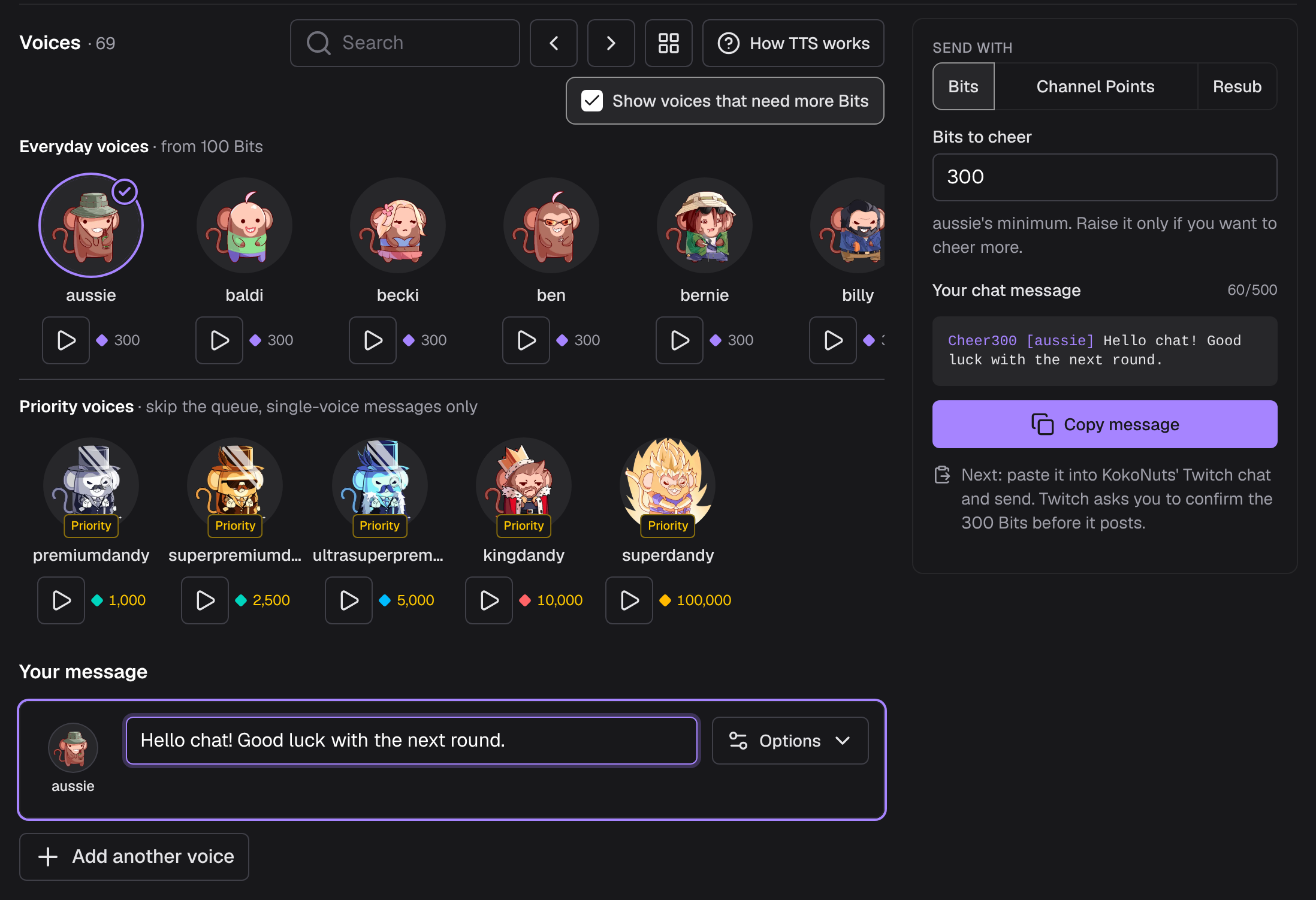
Copying the message does not send it. The message reaches the stream after you submit it through Twitch and it passes the channel’s moderation and queue rules.
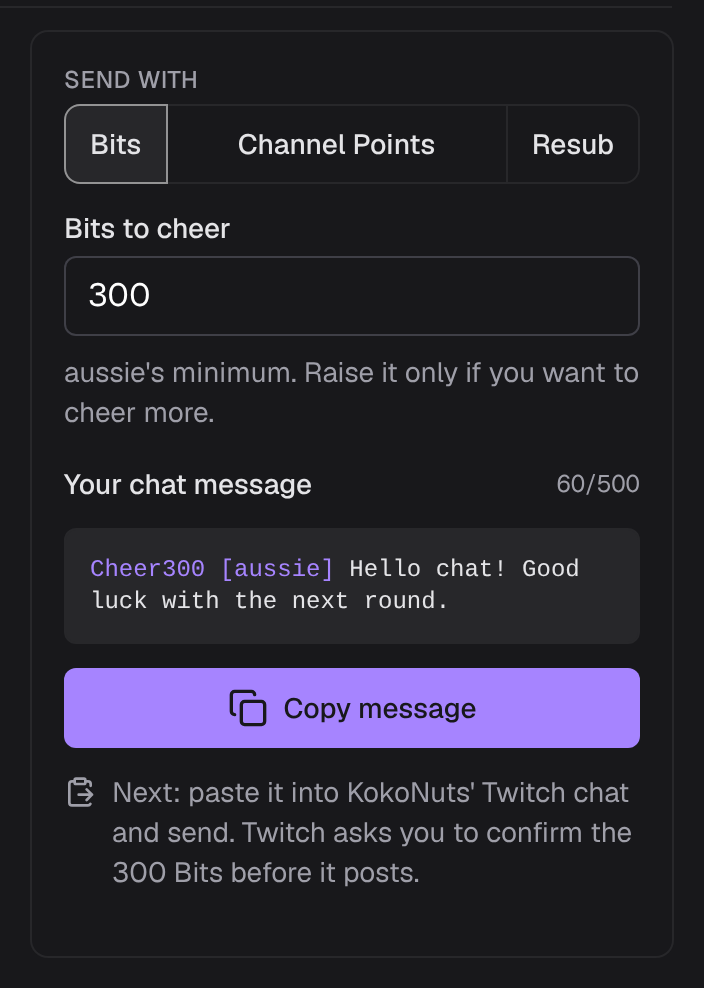
Cheers, Channel Points, resubs and Power-ups have different requirements. Check the selected voice’s cost before sending a message.
Check the puppet in OBS
- Keep VoicePuppet running on the Windows PC that runs OBS.
- In VoicePuppet, open Menu → OBS WebSocket Setup and follow the connection steps.
- Click Save & Connect. VoicePuppet creates and places its OBS sources.
- In OBS, open the scene that contains the puppet’s sources.
- Send one short TTS message with the builder.
- Check that the puppet appears and speaks when the message plays.
- Record a short test in OBS and listen to the recording.
You should see the puppet perform the message and hear it in the recording. A voice sample on the website only tests your browser’s audio. It does not test what OBS sends to your stream.
Troubleshooting for streamers
The puppet is missing in OBS
- Check that the VoicePuppet desktop app is running.
- Check that the intended scene is active and the puppet’s sources are visible.
- In VoicePuppet, open Menu → OBS WebSocket Setup and reconnect with Save & Connect.
OBS can unload a browser source when it is hidden if Shutdown source when not visible is enabled. See the OBS browser-source reference for that setting.
The puppet moves, but the stream has no sound
- While a message plays, check the puppet’s browser source in the OBS Audio Mixer.
- If its meter moves, check that the browser source is not muted and its volume is audible.
- Make a short recording and listen to it before going live.
The puppet’s audio reaches OBS through its browser source. If that source’s meter does not move, check that the browser source is active and that VoicePuppet is playing the message. The OBS audio mixer guide explains volume, mute and monitoring.
Troubleshooting for viewers
The message stays in the queue
- Ask the broadcaster to check whether the desktop app is connected and playback is paused.
- If manual approval is enabled, have the broadcaster review the waiting message in the desktop app.
- Check the moderation guide before sending the message again.
Sending another copy does not move the first message forward. It can create another message or another charge through Twitch.
A voice is unavailable
- Check the chosen way to send the message and its voice limit.
- Choose a voice that is available for that selection, or adjust your Bits amount before sending.
- If a saved voice was removed from the channel, select another current voice.
The ways-to-send guide explains the differences between Cheers, Channel Points and resubs.
Control the show
Start with TTS moderation to understand message screening and the browser queue. Optional integrations add controls to the tools you already use:
- Stream Deck puts skip, pause and profile controls on physical keys.
- Streamer.bot connects your actions to the main queue and playback.
- Donations lets Streamlabs and StreamElements tips speak through your main puppet.
See the streamer overview for demonstrations of voices, effects and moderation. For setup and moderation tradeoffs, read VoicePuppet vs TTS.Monster.