Donations
Speak Streamlabs and StreamElements tips through your main puppet.
What you can do
- Speak tips from Streamlabs or StreamElements through your main puppet, also in Stage Mode.
- Choose if the puppet says the donor’s name, the amount and the tip message.
- Set a minimum amount for each currency, and how much a tip in that currency can spend on voices and effects.
- Review tips that VoicePuppet held back, and send them to the main queue or dismiss them.
Tips stay with your provider, and the provider pays you directly. VoicePuppet only reads the tips.
Before you start
- A Streamlabs or StreamElements account that receives your tips.
- VoicePuppet signed in, and the owner role on your channel on voicepuppet.com.
- A provider can show Not available yet or Awaiting approval until it approves VoicePuppet. You can connect while it says Awaiting approval, but tips start to speak only after the approval.
Set it up
You connect the provider on the website, then choose what the puppet says in VoicePuppet.
1. Connect your provider on the website
-
On voicepuppet.com, open your channel’s dashboard. In the sidebar, under Channel setup, click Donations.
-
Under Tip providers, click Connect next to your provider.
-
Sign in to the provider and allow VoicePuppet to read your tips.
You should see: the provider shows Connected, with your account name and when VoicePuppet last checked it.
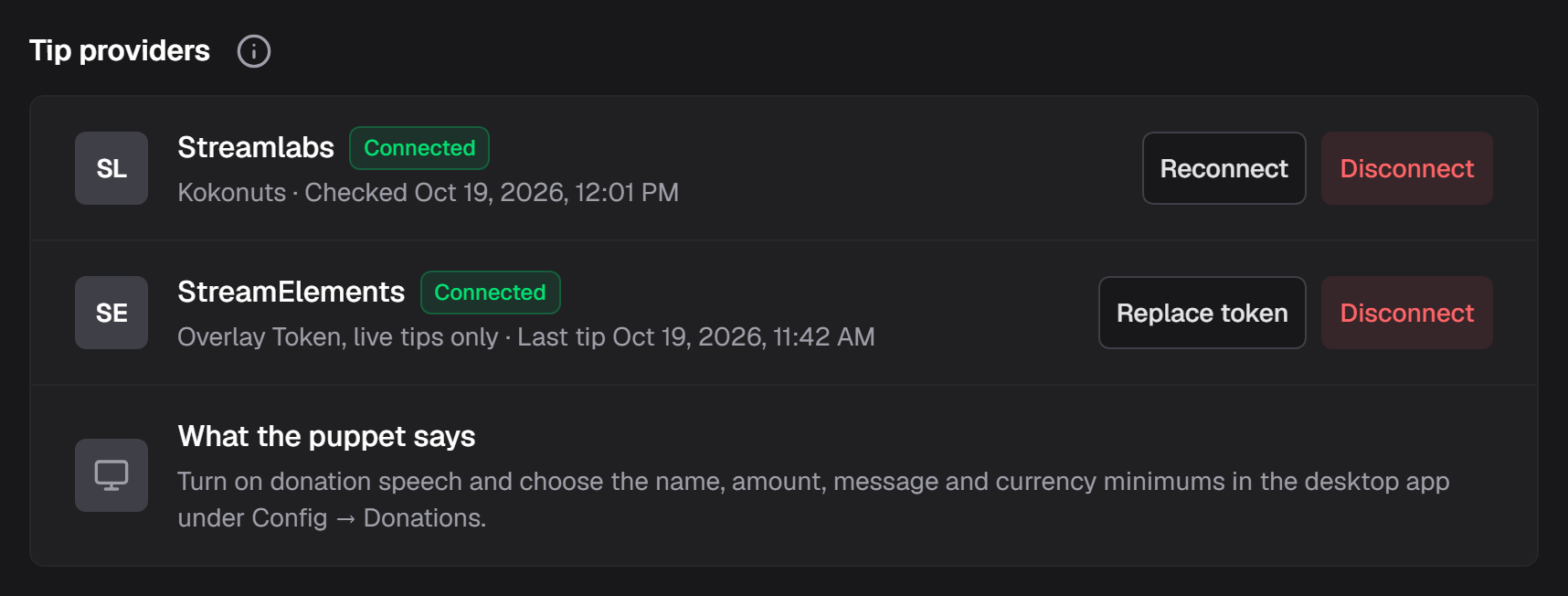
StreamElements without signing in
You can connect StreamElements with an Overlay Token instead. Then only live tips arrive: tips sent while VoicePuppet is disconnected are lost, and donor names are not verified.
- On the StreamElements row, click Use Overlay Token. If StreamElements already has a token, the button is Replace token.
- Open your StreamElements channel secrets from the link in the window, and select Show secrets.
- Copy the Account ID into StreamElements Account ID, and the Overlay Token into Overlay Token.
- Click Save Overlay Token.
2. Choose what the puppet says in VoicePuppet
- In VoicePuppet, open Config in the sidebar and choose Donations.
- Turn on the switch beside Donation playback.
- Choose what the puppet says: Speak the donor name, Speak the original amount and currency and Speak the tip message.
- Under Donation currency rates, click Add donation currency for each currency that your viewers tip in.
- For each currency, set:
- Minimum donation amount: smaller tips are not spoken.
- Selection units per currency unit: how much one unit of the currency can spend on voices and effects. These are the same units as your voice and effect prices. At 100 units for each dollar, a 5 USD tip can spend 500.
- USD value per currency unit: the tip’s value for the Hype Bar.
- Click Save.
Use the original amounts, before fees.
Check that it works
-
On the website’s Donations page, check that your provider shows Connected.
-
When the next tip arrives, look under Recent tips.
You should see: the tip with its amount and a status, such as In the main queue or Played.
What the tip status means
| Status | What it means | What to do |
|---|---|---|
| Waiting for the desktop | VoicePuppet has not received the tip yet. Usually VoicePuppet is not running. | Start VoicePuppet. |
| In the main queue | The tip waits in the main queue. | Nothing. |
| Played | The puppet spoke the tip. | Nothing. |
| Needs review | VoicePuppet held the tip back. The line under the tip says why, for example a currency without a rate. | Fix the cause, then click Review for playback, or click Dismiss. |
| Playback failed | VoicePuppet could not play the tip. | Click Review for playback to try again, or click Dismiss. |
| Outcome uncertain | VoicePuppet does not know if the tip played. | Check the history in VoicePuppet before you play it again. |
| Not eligible | The provider removed the tip, or does not support it. | Look at the tip on the provider’s website. |
Review for playback opens Send this tip to the main queue? Click Send to main queue. VoicePuppet uses your current rates, minimum and moderation settings. The donor is not charged again or refunded.
Updating
There is nothing to update. The website and VoicePuppet keep the connection up to date.
Turn off or uninstall
- Turn off: in VoicePuppet, turn off the switch beside Donation playback and click Save. The provider stays connected, and new tips are not spoken.
- Disconnect: on the website’s Donations page, click Disconnect next to the provider. VoicePuppet stops reading your tips. Tips that were already received stay in the list.
Troubleshooting
The provider says “Reconnect needed”. The provider ended VoicePuppet’s access. Click Reconnect and sign in to the provider again.
A tip says “Needs review”. Read the line under the tip. If its currency has no rate, add the currency in VoicePuppet under Donation currency rates. Then click Review for playback.
Tips arrive but the puppet does not speak them. In VoicePuppet, make sure that the switch beside Donation playback is on and that the tip is above the minimum for its currency.
StreamElements with an Overlay Token misses tips. Tips that arrive while VoicePuppet is disconnected are lost. Connect with Connect instead, if it is available.