Stream Deck
Skip, pause and switch profiles from Elgato Stream Deck keys, with live queue status on the deck.
What you can do
- Skip everything playing now, skip one lane only, or block chat from skipping the current message.
- Pause the main queue, or use Super Pause to stop anything new from starting in the main queue and Rapid-Fire.
- Turn Fight Mode on or off, or restart VoicePuppet into another profile.
- See who is speaking and how much time is left on the Skip key, or on a Stream Deck Neo’s info bar.
Before you start
- Windows 10 or newer, with VoicePuppet and the Stream Deck app on the same computer.
- The Elgato Stream Deck app 7.6 or newer.
- The Queue Status key needs a Stream Deck Neo. The other keys work on any Stream Deck.
Set it up
The Stream Deck card is always on the Integrations page. You do not turn it on.
- In VoicePuppet, open Integrations → Stream Deck.
- Click Get it on Elgato Marketplace.
- On the Marketplace page, install the Voice Puppet plugin. The Stream Deck app installs it for you.
- In the Stream Deck app, find the Voice Puppet category in the actions list on the right.
- Drag the keys you want onto your deck.
- If you added a Skip Lane or Switch Profile key, select it and choose a lane or profile in the settings below the deck. If the list is empty or out of date, click ↻.
Check that it works
-
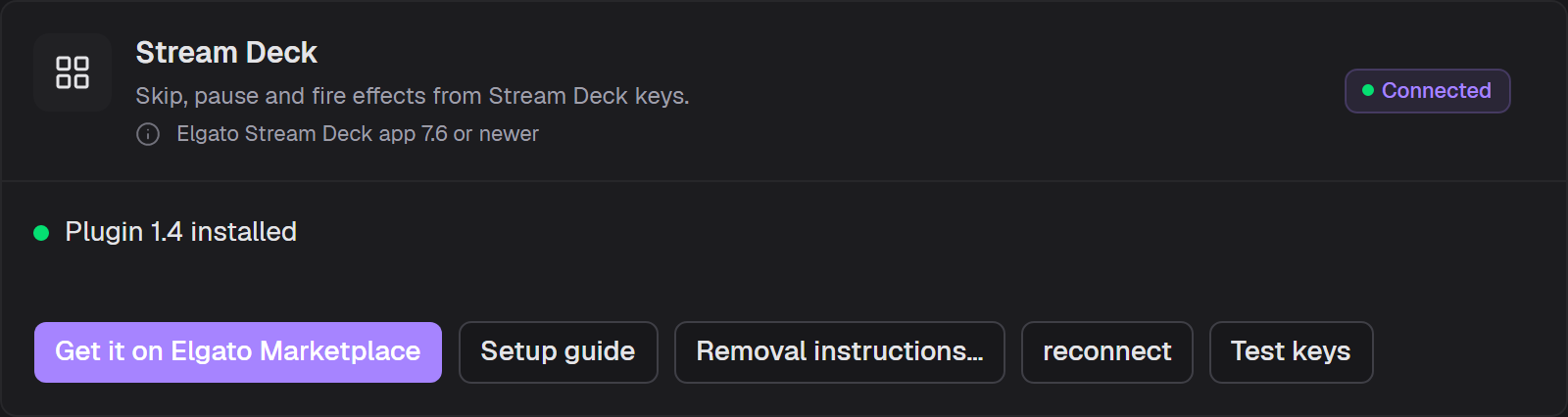
Look at the Stream Deck card in VoicePuppet.
You should see: Connected and the installed plugin version.
-
Click Test keys.
You should see: the keys on your deck flash, and the card says that the plugin answered.
Each key also shows how a press went:
- A check mark usually means that VoicePuppet did it. If VoicePuppet does not answer in time, the key also shows a check mark. When it matters, look at VoicePuppet.
- A crossed-out circle means that VoicePuppet answered but had nothing to do. For example, Skip with nothing playing, or a lane or profile that no longer exists.
- A warning triangle means that the press did not get to VoicePuppet. Usually VoicePuppet is not running, or the key has no lane or profile chosen.
Keys
| Key | What it does |
|---|---|
| Skip | Skips everything playing now, in every lane, with your streamer skip effect. It is the same as !skip. While a message plays, the key shows the speaker and the time left. |
| Stay | Blocks the chat vote to skip the current message. |
| Pause | Pauses or resumes the main queue. Messages wait until you resume, but priority voices can still play. The key changes while the queue is paused. |
| Super Pause | The emergency stop for the main queue and Rapid-Fire. Nothing new starts there, not even priority voices. The current message finishes, and other queues keep playing. |
| Fight Mode | Turns Rapid-Fire Fight Mode on or off, if your account has it. The key changes while Fight Mode is on. |
| Skip Lane | Skips only the lane you chose. The other lanes keep playing. Main is the main queue. |
| Switch Profile | Restarts VoicePuppet into the profile you chose. The plugin reconnects by itself. |
| Queue Status | For the Stream Deck Neo info bar: who is speaking, the time left, and whether the queue is paused. |
What the card status means
| Status | What it means | What to do |
|---|---|---|
| Connected | The plugin is connected to VoicePuppet. | Nothing. |
| Stream Deck app not installed | VoicePuppet cannot find the Stream Deck app. | Install it from Elgato, then open the Integrations page again. |
| Not set up yet | The Stream Deck app is installed, but the plugin is not. | Install the plugin from the Marketplace (step 3 of Set it up). |
| Not connected | The plugin is installed but is not connected now. | Start the Stream Deck app, then click reconnect on the card. |
| Needs attention | The plugin and VoicePuppet are too far apart in version to connect. | Update the older one: the plugin in the Stream Deck app, or VoicePuppet. |
Updating
The Stream Deck app keeps Marketplace plugins up to date and shows available updates in its Marketplace. VoicePuppet updates separately.
Turn off or uninstall
The Stream Deck card has no switch. To stop using the keys, remove or turn off the Voice Puppet keys in your Stream Deck profile.
To uninstall:
- Back up the Stream Deck layouts that you want to keep.
- In the Stream Deck app’s plugin management, remove the Voice Puppet plugin.
VoicePuppet never writes into the Stream Deck plugin folder and never removes your profiles. It keeps working without the plugin.
Troubleshooting
Every key shows a warning triangle. VoicePuppet is not running, or the plugin lost its connection. Start VoicePuppet, then click reconnect on the Stream Deck card.
Skip Lane or Switch Profile shows a triangle or a crossed-out circle, but other keys work. The key has no lane or profile chosen (triangle), or the one you chose no longer exists (crossed-out circle). Select the key in the Stream Deck app and choose again.
The list says “No lanes yet” or “No profiles yet”. VoicePuppet must be running to fill the list. Start VoicePuppet and click ↻.
The Queue Status bar says “Update needed”. Update the plugin or VoicePuppet, whichever is older.
Test keys says that no plugin answered. Start the Stream Deck app and check that the Voice Puppet plugin is installed. Then click reconnect and test again.