Streamer.bot
Control the main queue and playback from your Streamer.bot actions, and react when VoicePuppet's state changes.
What you can do
- Skip what is playing in every lane or in one puppet’s lane, from any Streamer.bot trigger: a chat command, a channel point reward, a hotkey or a Stream Deck button.
- Pause, resume or Super Pause the main queue from the same triggers.
- Pause the main queue while a Twitch ad runs, and resume it when the ad ends.
- Resume the main queue when your stream starts, and pause it when your stream ends.
- Turn Fight Mode on and off, or switch to another VoicePuppet profile.
- Read the queue’s live state, such as who is speaking and how many messages are waiting, for an overlay, a chat reply or your own logic.
Before you start
- Windows, with VoicePuppet and Streamer.bot 1.0.7 or newer on the same computer and the same Windows account.
- VoicePuppet signed in to your account. VoicePuppet downloads the import when you copy it.
- Stream Deck works at the same time. Streamer.bot does not replace it.
Set it up
You copy one import from VoicePuppet and paste it into Streamer.bot. It takes about two minutes.
-
Start Streamer.bot. If Streamer.bot is not running when you copy, the import adds every VoicePuppet action again (see Updating).
-
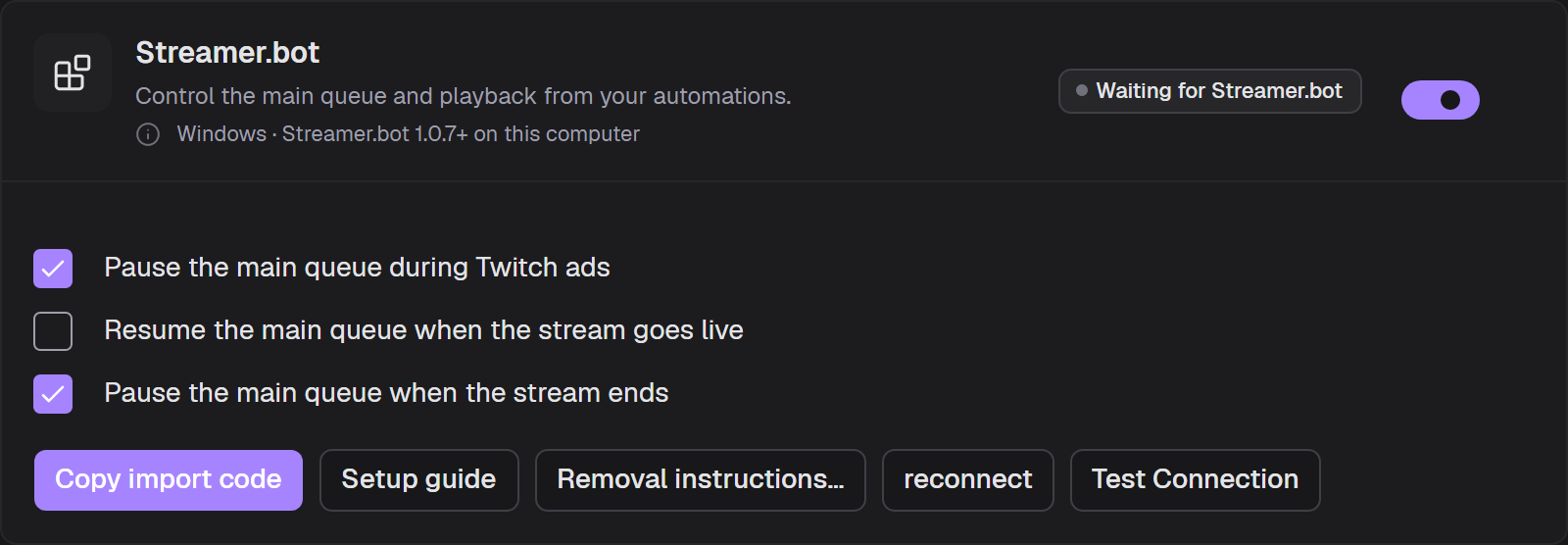
In VoicePuppet, open Integrations → Streamer.bot and turn it on.
You should see: Waiting for Streamer.bot. That is normal at this point.
-
Tick the automations you want. You can change them later and copy again:
- Pause the main queue during Twitch ads
- Resume the main queue when the stream goes live
- Pause the main queue when the stream ends
-
Click Copy import code.
-
In Streamer.bot, click Import in the top bar.
-
Click in the Import String box and paste with Ctrl+V.
-
Click Import at the bottom of the Import window.
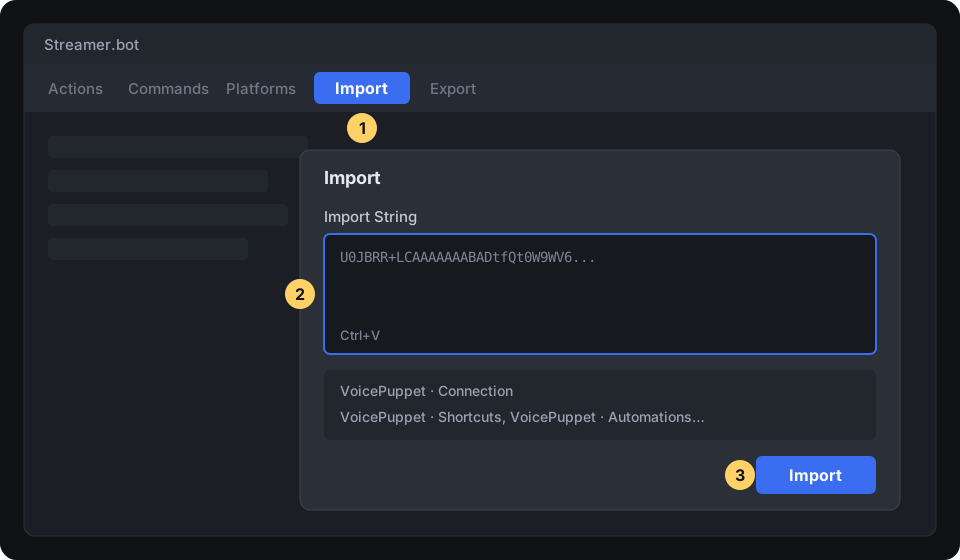
The diagram is simplified. Your Streamer.bot window has more buttons and lists every action in the import.
-
Streamer.bot asks if you want to import custom C# code. Click Yes.
-
Streamer.bot asks if you want to run VoicePuppet · Connection now. Click Yes.
You should see: the Streamer.bot card in VoicePuppet changes to Connected in a few seconds.
-
Do not add triggers to VoicePuppet · Connection. It runs the background connection and starts by itself.
The import adds these action groups to Streamer.bot:
| Group | What it contains |
|---|---|
| VoicePuppet · Shortcuts | A Skip action for each puppet and, if you have several profiles, a Switch to for each. |
| VoicePuppet · Automations | The three automations, turned on or off as you ticked them. |
| VoicePuppet | The connection and the building blocks for your own actions. |
The extension is plain C# source. You can read it in the Import window before you accept it. It contains no passwords, channel IDs or compiled code. VoicePuppet prepares it for your computer, so copy it from VoicePuppet on each PC. Do not share the code with another PC.
Check that it works
-
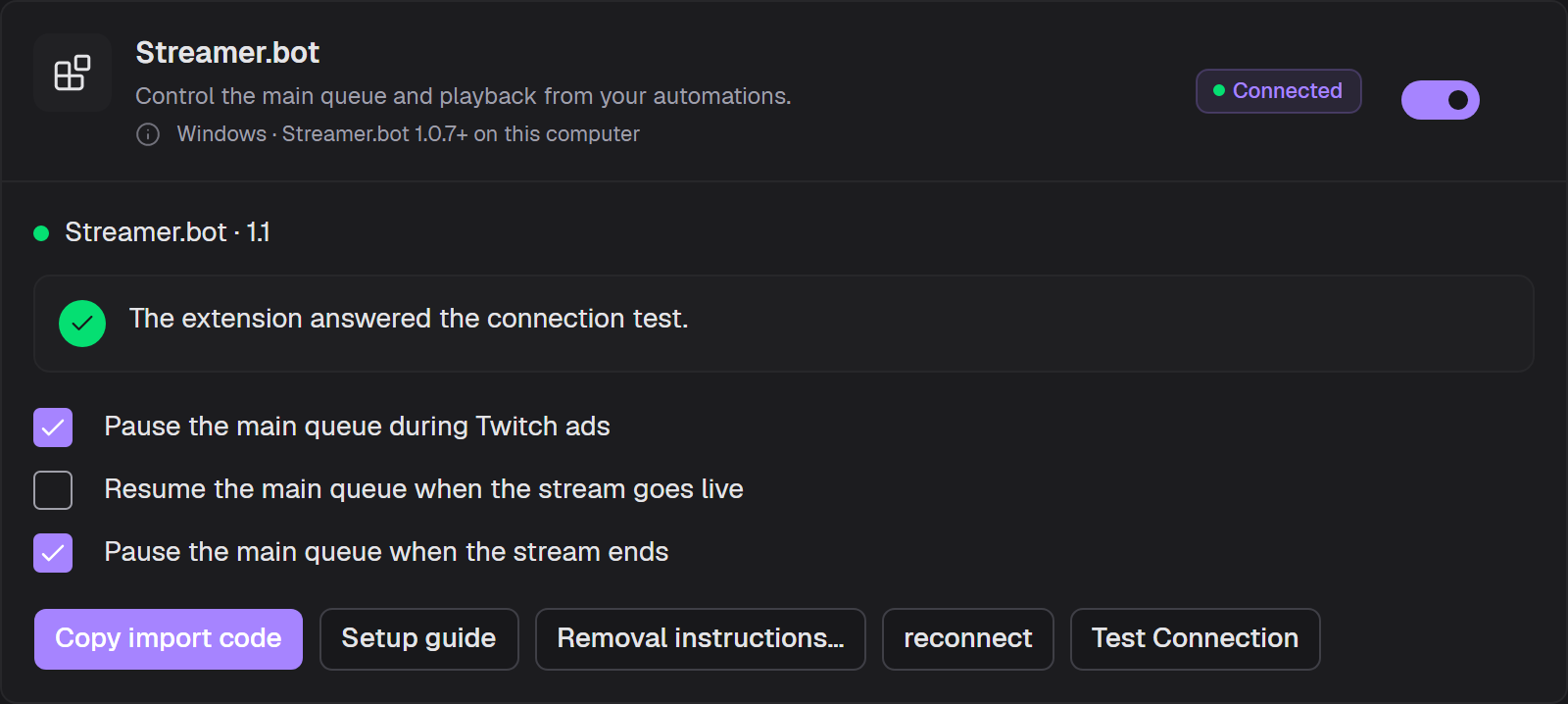
On the Streamer.bot card in VoicePuppet, click Test Connection.
You should see: The extension answered the connection test.
Use it in your own actions
To start a VoicePuppet action from a hotkey, a chat command or a Stream Deck button, add that trigger to the action in Streamer.bot. Your triggers stay when you copy and import again. The new import leaves out the VoicePuppet actions that Streamer.bot already has, if Streamer.bot connected to VoicePuppet at least once since VoicePuppet started.
To do more, call the VoicePuppet actions from your own action:
- Create an action, for example Skip on cheer, and give it the trigger you want.
- Add the sub-action Core → Actions → Run Action, and choose a VoicePuppet action.
- Leave Run Action Immediately on.
- To use the result, add sub-actions after it. With Run Action Immediately on,
voicepuppet_statusand the other result arguments are available to the rest of your action.
How the ad pause works
VoicePuppet · Pause during ads pauses the main queue for the length of the ad, then resumes it. If you pause or resume the queue yourself during the ad, VoicePuppet leaves it as you set it. A queue that was already paused when the ad started stays paused.
Commands
| Action | What it does |
|---|---|
| Skip | Skips everything playing now, in every lane, with your streamer skip effect. It is the same as !skip. SkipLane skips one lane only. |
| Stay | Blocks the chat vote to skip the current message. |
| Pause / Resume | Pauses or resumes the main queue. Pausing a paused queue changes nothing, so you can send it again. |
| TogglePause | Pauses the main queue if it is playing, and resumes it if it is paused. |
| SuperPause | Turns Super Pause on or off. Super Pause is the emergency stop for the main queue and Rapid-Fire. Nothing new starts there, not even priority voices. Other queues keep playing. |
| FightMode | Turns Rapid-Fire Fight Mode on or off, if your account has it. |
| SkipLane | Skips only the lane in voicepuppet_laneId. |
| SwitchProfile | Restarts VoicePuppet into the profile in voicepuppet_profileId. The extension reconnects by itself. |
| GetState | Returns the current state in voicepuppet_stateJson. |
| ListProfiles / ListLanes | Return the profiles or lanes, with their IDs, in voicepuppet_stateJson. |
Results
Every command sets these arguments for the rest of the action that ran it:
| Argument | What it means |
|---|---|
voicepuppet_status |
succeeded, no-change, failed or unknown. |
voicepuppet_detail |
A short explanation, for a chat reply or the log. |
voicepuppet_stateJson |
The answer to GetState, ListProfiles or ListLanes. |
voicepuppet_ok |
True when the command succeeded or had nothing to change. |
unknown means that VoicePuppet did not answer in five seconds, or that the connection dropped. The command
can still have run, and the extension never sends it again by itself.
Warning: After an unknown result, read the state before you send a toggle again. If the first toggle ran,
a second one turns the setting back.
Live state and triggers
While it is connected, the extension keeps these Streamer.bot globals up to date. Use them in your actions, text sources or overlays:
| Global | What it means |
|---|---|
voicepuppet_connected |
Whether the extension is connected to VoicePuppet. |
voicepuppet_stateAvailable |
Whether the values below are current. Check it before using them. |
voicepuppet_isPaused / voicepuppet_isSuperPaused |
The main queue’s pause and Super Pause state. |
voicepuppet_isFightModeEnabled |
Whether Fight Mode is on. |
voicepuppet_isSpeaking |
Whether anything is playing. |
voicepuppet_nowPlaying |
The most recent message to start playing, as JSON. |
voicepuppet_queueDepth |
How many messages are waiting, across all lanes. |
voicepuppet_profiles / voicepuppet_lanes |
The profiles and lanes, as JSON. |
The extension clears them when the connection drops. To react to changes, use the triggers under Custom → VoicePuppet: Connected, Disconnected, StateChanged and CommandFailed.
StateChanged reports the latest state, for a status display. It can combine quick changes into one, so it is not a reliable signal that a message started or finished.
Warning: Do not attach a queue command to StateChanged. The command changes the state, which starts the trigger again, in a loop.
Updating
Copy and import again when you add a puppet or profile, change an automation, or the card shows Update Available. The new import adds what is new and updates the connection and the automations. Your shortcuts and their triggers stay as they are. Copying alone changes nothing in Streamer.bot until you import.
The automations belong to VoicePuppet. A new import sets them to the boxes ticked on the card.
Warning: Copy the import while Streamer.bot is running. If it is not running, the import contains every VoicePuppet action again, and importing it removes the triggers you added to those actions.
Update needed is different: the extension and VoicePuppet are too far apart in version to work together. Update VoicePuppet, then copy and import again.
Turn off or uninstall
- Turn off: turn off the Streamer.bot card. VoicePuppet closes the connection and ignores new commands. Your Streamer.bot actions stay as they are.
- Uninstall: in Streamer.bot, delete the VoicePuppet, VoicePuppet · Shortcuts and VoicePuppet · Automations action groups. Then turn off the integration in VoicePuppet.
Troubleshooting
The card says “Waiting for Streamer.bot”. Both apps must be running. If you clicked No when Streamer.bot asked to run the connection, restart Streamer.bot. The extension reconnects by itself after either app restarts.
A puppet or profile is missing. You added it after the last copy. Copy and import again. A renamed puppet keeps its old shortcut name and still works. You can rename the action in Streamer.bot.
You deleted VoicePuppet actions and a new copy does not bring them back. VoicePuppet still has the list of actions from when Streamer.bot connected. Click reconnect on the card, then copy and import again.
The card says “Update needed”. The extension and VoicePuppet do not match. If VoicePuppet is older, update it. If not, copy and import again.
Commands return failed. Read voicepuppet_detail. Usual causes: the integration is turned off, the lane
or profile ID does not exist, or your account does not have Fight Mode.
Profile switching disconnects the extension. This is normal. VoicePuppet restarts into the new profile, and the extension reconnects in a few seconds.
You moved VoicePuppet’s data folder. In Streamer.bot, set the persisted global
voicepuppet_discoveryDirectory to VoicePuppet’s Settings folder, the one that contains
stream-deck-discovery.json. Then restart Streamer.bot. The default folder is
%APPDATA%\KokoChatApp\Settings. Never copy anything from that file into actions, globals or exports.